Managing Users and Permissions with Role-Based Access Control (RBAC)
Audience: Organization Admins, Managed Service Providers (MSPs)
This powerful feature replaces our previous single-role system with a more flexible and granular approach to user management, designed to support the complex needs of growing teams and Managed Service Providers (MSPs).
With RBAC, you can now create distinct roles for your team members, granting them specific permissions within your organization and on a per-project basis. This allows you to securely scale your operations, streamline user onboarding, and ensure that each user has access only to the information and actions they need.
Understanding the Roles
Our new user management system is built around three distinct roles. Two of these roles (Regular User and View Only User) are assigned on a per-project basis, while the Org Admin role has permissions across the entire organization.
1. Org Admin (Organization Administrator)
The Org Admin is the super-user of your organization. This role has the highest level of permissions and is responsible for managing the overall structure, including users and projects. There must always be at least one Org Admin in an organization.
Key Responsibilities & Permissions:
- User Management: Create new users, invite them to the organization, and delete users entirely.
- Role Management: Promote users to Org Admin or demote them. Assign users to projects with either a "Regular User" or "View Only" role.
- Project Management: Create new projects and delete existing ones (Note: The last remaining project cannot be deleted).
- API & Integrations: Create and manage Product Integration API (PIA) tokens and other API keys.
- Full Asset & Event Control: Has all the permissions of a Regular User across all projects by default.
2. Regular User
This role is for team members who actively work on security operations within a specific project. They can manage assets, investigate events, and configure monitoring, but cannot manage users or projects.
A user can be a Regular User on Project A and have a different role (or no access) on Project B.
Key Permissions (within their assigned project):
- Manage assets (add, delete, start/stop monitoring).
- Manage events (resolve and un-resolve).
- Create, edit, and delete monitoring rules, email rules, and webhooks.
- Manage filters (save, edit, delete).
- Export and download credentials.
- View sensitive data and passwords from combo lists.
3. View Only User
This role is ideal for stakeholders, managers, or clients who need to monitor a project's status without the ability to make any changes. It provides read-only access to most project data.
A user can be a View Only User on Project A and have a different role (or no access) on Project B.
Key Permissions (within their assigned project):
- View all project information, including assets, events, and rules.
- View sensitive data and passwords from combo lists.
- Cannot make any changes, such as resolving events, adding assets, or editing rules.
How-To Guide: Common Workflows for Org Admins
How to Create and Onboard a New User
- As an Org Admin, navigate to the User Management settings.
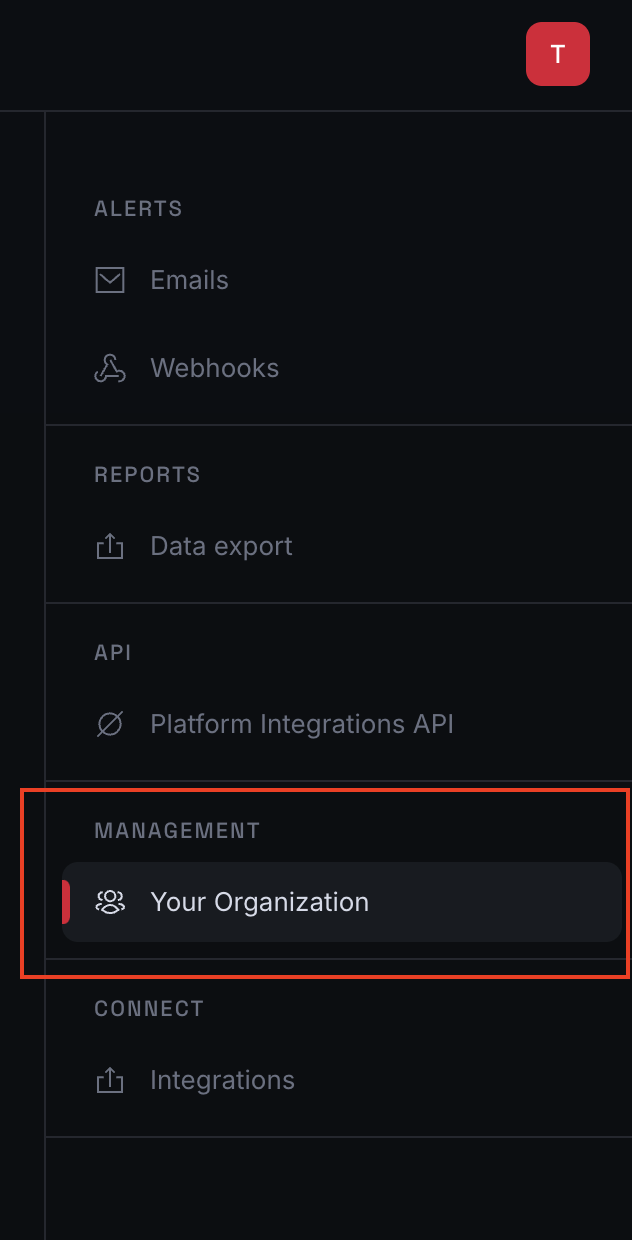
- Click "Invite new user" and enter the user's information. Multiple users can be added at once.
If you want to make a user an Organization Admin, simply toggle the 'Org Admin' switch next to their name.
- The user is now created within your organization but has no access to any projects yet.
Note: Org Admin users by default have access to all the projects under the organization.
- To grant access to a project/s, go to a specific project and click a button 'Add user to Project'.
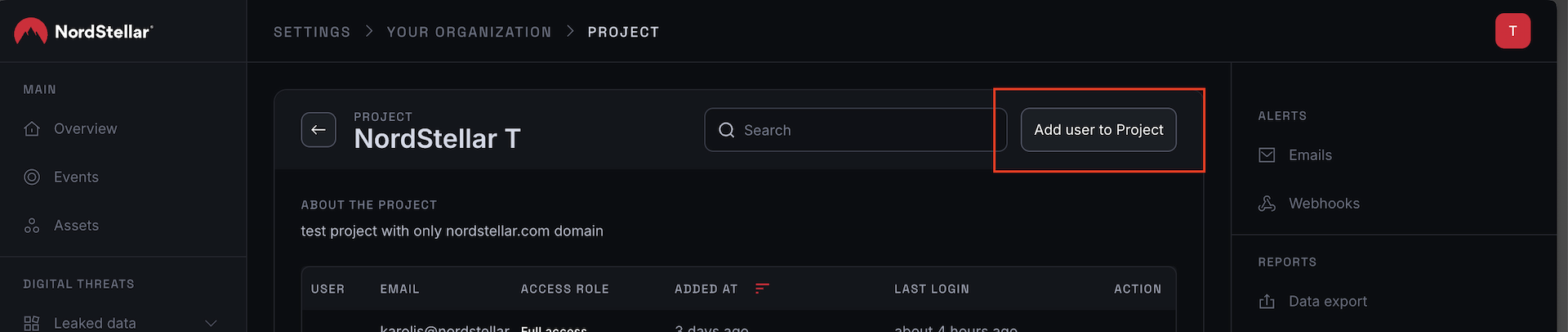
- When adding the user to a project, you must assign them a role: Regular User or View Only User.
How to Manage a User's Project Access
A single user can have different roles across multiple projects.
- Example: You can assign
[email protected]as a Regular User on "Client A's Project" so they can manage it, and as a View Only User on "Client B's Project" so they can only observe. - You can add or remove a user from projects at any time from the project's settings page.
How to Promote a User to Org Admin
- Navigate to the User tab.
- Find the user you wish to promote, click three dots and click Edit from the dropdown menu.
- Toggle "Org Admin" switch to promote user to Org Admin
Important: Promoting a user to Org Admin will remove all of their previous project-specific roles (Regular User, View Only). They will now have full administrative privileges.
How to Demote an Org Admin
To demote user follow the same steps as in How to Promote a User to Org Admin section.
Important: Demoting a user from Org admin will remove all of their privileges. User will need to be assigned a project specific role in order to user a platform.
Permissions Quick Reference Table
Here is a detailed breakdown of what each role can and cannot do.
| Permission / Action | Org Admin | Regular User | View Only User |
|---|---|---|---|
| Organization & User Management | |||
| Create / Delete Projects | ✔️ | ✖️ | ✖️ |
| Create / Delete Platform Users | ✔️ | ✖️ | ✖️ |
| Promote / Demote Org Admins | ✔️ | ✖️ | ✖️ |
| Assign Users to Projects | ✔️ | ✖️ | ✖️ |
| Create / Manage API Keys & PIA Tokens | ✔️ | ✖️ | ✖️ |
| Project-Level Actions | |||
| Add / Delete Assets | ✔️ | ✔️ | ✖️ |
| Start / Stop Asset Monitoring | ✔️ | ✔️ | ✖️ |
| Resolve / Un-resolve Events | ✔️ | ✔️ | ✖️ |
| Create / Edit / Delete Monitoring Rules | ✔️ | ✔️ | ✖️ |
| Create / Edit / Delete Webhooks & Email Rules | ✔️ | ✔️ | ✖️ |
| Export / Download Credentials | ✔️ | ✔️ | ✖️ |
| Data Viewing | |||
| View Passwords (in combo lists) | ✔️ | ✔️ | ✔️ |
| Reveal Sensitive Data (in malware) | ✔️ | ✔️ | ✔️ |
Frequently Asked Questions (FAQ)
Q: Can a user have different roles in different projects?
A: Yes. This is a core part of the feature. A user can be a Regular User in one project and a View Only User in another.
Q: What happens right after I create a new user? Do they have a default role?
A: When a new user is created, they exist in your organization but have no roles or project access by default. An Org Admin must explicitly assign them to one or more projects and choose a role for them within each project.
Q: Can I edit a user's email address after they have been created?
A: No, it is not possible to edit a user's email address. To change an email, you would need to delete the existing user and create a new one with the correct address.
Q: Can I delete the very last project in my organization?
A: No, to ensure data integrity, at least one project must always exist within an organization.
Q: Can I remove all Org Admins?
A: No, an organization must always have at least one Org Admin. You cannot delete or demote the last remaining Org Admin.