Assets List
The Asset Management feature provides a centralized view of all assets related to your organization's security monitoring. It allows you to manage, monitor, and analyze critical assets such as domains, subdomains, IP addresses, email addresses, and keywords. This feature serves as a single source of truth for tracking assets that may pose potential attack or risk vectors.
Key Features
- Centralized Asset Repository: View and manage all assets in one place.
- Asset Classification: Categorize assets into relevant types such as domains, IPs, emails, and keywords.
- Easy Management: Add, edit, and remove assets as needed.
- Monitoring & Alerts: Enable monitoring for specific assets to receive alerts on potential threats.
- Automated Discovery: Detect and enrich discovered assets to enhance visibility.
- Filtering and Sorting: Efficiently locate specific assets based on various criteria.
How It Works
Prerequisites
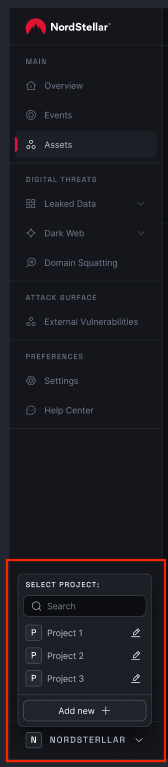
Before adding assets, you must have a project to associate them with. If you do not have an existing project or need to create a new one, follow these steps:
-
Click on the Project Switcher in the navigation menu.
-
Click the "Add New" button.
-
A modal will appear where you need to enter the Project Name.
-
After the project is successfully created, go to the Project Switcher and select the newly created project to open it.
If needed, you can edit the project name later (e.g., to correct typos).
Projects cannot be deleted. If you need to remove a project, please contact your account manager for assistance.
1. Adding Assets
- Navigate to the Asset Management section.
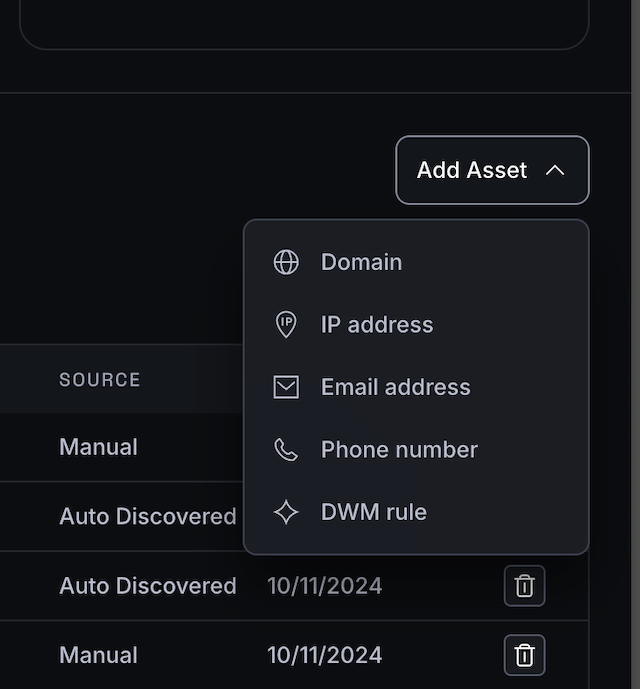
- Click Add Asset and choose the asset type (domain, email, IP, etc.).
- Enter the asset details and save it.
Added assets will have different statuses:
-
Pending: All newly added assets will initially be in a pending state.
This step ensures NordStellar reviews assets before monitoring begins. The review process helps prevent abuse, such as monitoring of unauthorized assets or assets that do not belong to the user. Without this step, users could potentially track assets they don’t own or have permission to monitor, creating ethical, legal, and privacy concerns.
-
Monitored: Once an asset is approved by NordStellar, its status changes to "Monitored”. At this stage, various background processes begin, including, Automated Asset Discovery.
2. Viewing Assets
Assets can be viewed in a single table or in separate tabs for each asset type. Use filters and search functionality to find specific assets.
3. Editing & Removing Assets
- Locate the asset in the list and click Edit to update its details. Important - Only Dark Web monitoring rules can be edited.
- Deleting assets is currently not available. In order to delete an asset, please contact your account manager for assistance.
Deleting an asset may be useful when an asset no longer belongs to the company (e.g., the IP for the domain changed, or an employee left the company and there is no need to monitor their email).
4. Enabling Monitoring
- Toggle the Monitoring option for an asset to receive events on detected threats.
This feature is only available for email addresses and phone numbers. Once the monitoring option is toggled off, no new events will be generated; however, already generated events for this asset will remain.
FAQ
-
What type of asset can i add ?
Currently, the platform supports adding:
- Domains
- IP addresses
- Emails
- Phone numbers
- Dark Web monitoring rules.
-
Can I import assets in bulk?
While it is currently not possible to import multiple assets from a file, you can still add multiple assets of the same type by manually entering them or copying and pasting them into the relevant field, separated by spaces. For example, you can add multiple domains by entering them one by one or copying and pasting them, ensuring each domain is separated by a space.
-
What does the 'Auto-discover subdomains' checkbox mean?
When a user adds a domain, the platform automatically generates a list of subdomains. This list is used to find email addresses that have been compromised and IP addresses with external vulnerabilities.
We advise users to keep the checkbox selected in order to get the most out of attack surface monitoring. If, however, you wish to add a single domain, deselect the checkbox. Note that if you add multiple domains simultaneously, this option will apply to all of them.
-
How do I know if an asset is being monitored?
You will see a Monitoring Enabled indicator next to the asset. An event is created when a threat to an asset is detected. Additionally, email or Slack notifications are sent if the user has enabled alerts for that specific asset type.
-
What happens when an asset is removed?
The removal of an asset from the Asset Management dashboard also deletes all associated events, both resolved and unresolved.
-
What does each status mean?
Monitored: The asset is being actively monitored.
Unmonitored: Monitoring has been manually disabled for this asset. If event generation for the asset is toggled off and then back on, no events will be generated retroactively.
Orphaned: The asset is no longer associated with a known parent domain (relevant for IPs). Pending Verification: The asset is a new, manually added asset that requires verification by the NordStellar team.
For further assistance, contact NordStellar team.