General Overview
The Search Filters feature allows users to save time and enhance search efficiency. By creating reusable filters for frequently searched queries, users can quickly apply these filters without repeatedly entering the same terms. This streamlines the process of investigating specific topics or threats across various sources. This documentation provides step-by-step guidance on how to create, manage, and use search filters effectively.
For example, if a user frequently searches for terms like Apache exploits, they can save this query as a filter. Once saved, the filter can be applied with a single click, eliminating the need to retype the same query each time.
How to Create and Manage a Search Filter
Follow the steps below to create, save, and manage a search filter in the Dark Web Search feature.
Creating a Filter
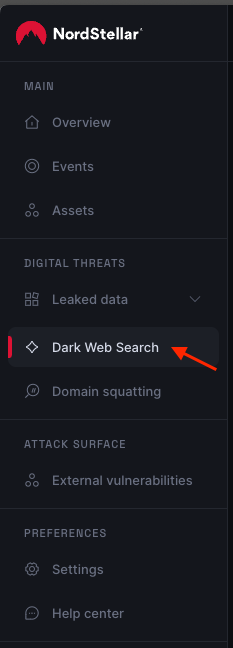
- Navigate to the Search section under the Dark Web menu.
-
Enter your desired search query in the search bar. Remember, Dark Web search supports Lucene syntax. If you're unfamiliar with this syntax or need guidance, refer to our Lucene Query Syntax Guide.
-
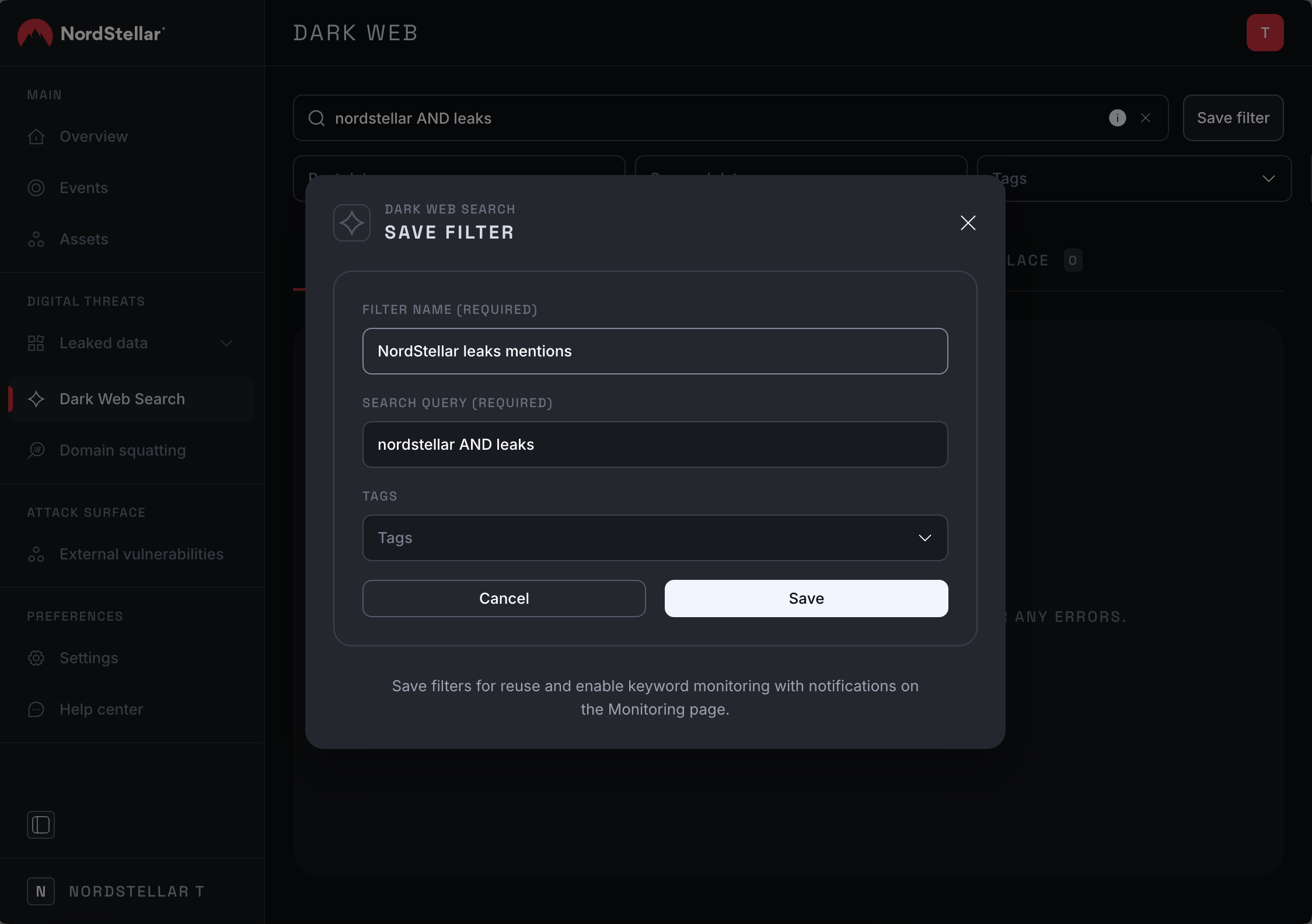
Once you’ve entered your query, click the Save Filter button.

- In the modal that appears, fill in all the required fields and click Save to finalize the process.
Applying a Saved Filter
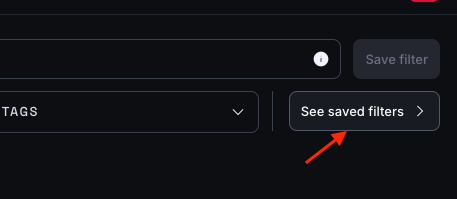
- To view your saved filters, click the See Saved Filters button.
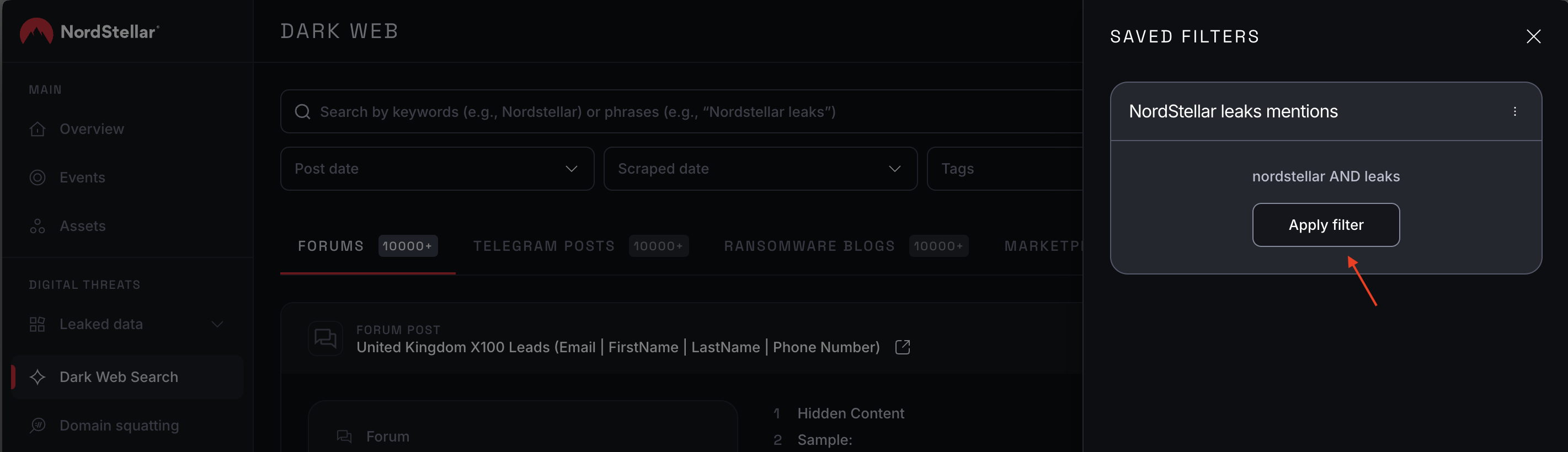
- Hover over a filter and click Apply Filter to use it for your search.
Editing or Deleting a Filter
- Open the saved filters drawer by clicking See Saved Filters.
- Hover over the filter you want to modify, then click the three-dot menu icon.
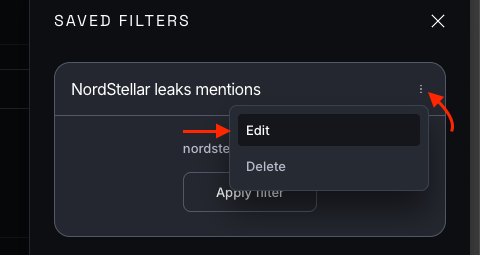
- Select either Edit or Delete based on your needs.
Important
- If a filter is used in an existing monitoring rule, any changes you make to the filter will automatically affect all associated monitoring rules. These changes will only apply to future monitoring activity, and events already generated by those monitoring rules will remain unchanged.
- Deleting a search filter will also delete all associated monitoring rules and any events generated by those rules, as monitoring rules cannot exist without their underlying search filters.
By following these steps, you can create, manage, and optimize filters to streamline your searches and ensure effective monitoring.