Alerts
The Alerts feature provides real-time alerts about critical security events detected by the platform, including data breaches, malware infections, and other potential threats. These alerts enable users to take swift action and mitigate risks effectively.
Key Benefits
- Timely Alerts: Stay informed instantly with alerts sent as soon as a security event is detected—no need to check the platform manually.
- Customizable Criteria: Set up alert rules based on event type and risk level.
- Multiple Delivery Channels: Receive alerts via email, Slack, Microsoft Teams, and Generic Webhook.
How It Works
Asset Monitoring
Users add assets (such as domains, emails, phones, IPs or DWM rules) to the platform.
Event Generation
The platform continuously monitors for security threats. If a detected security event involves one of the user's assets, the platform generates an event.
Alert Delivery
If the user has configured alert rules, the platform sends alerts based on the generated event. Alerts are sent via email, Slack, Microsoft Teams, or Generic Webhook, depending on the user's configured preferences.
Setting Up Alert Channels
Setting Up Email Alerts
-
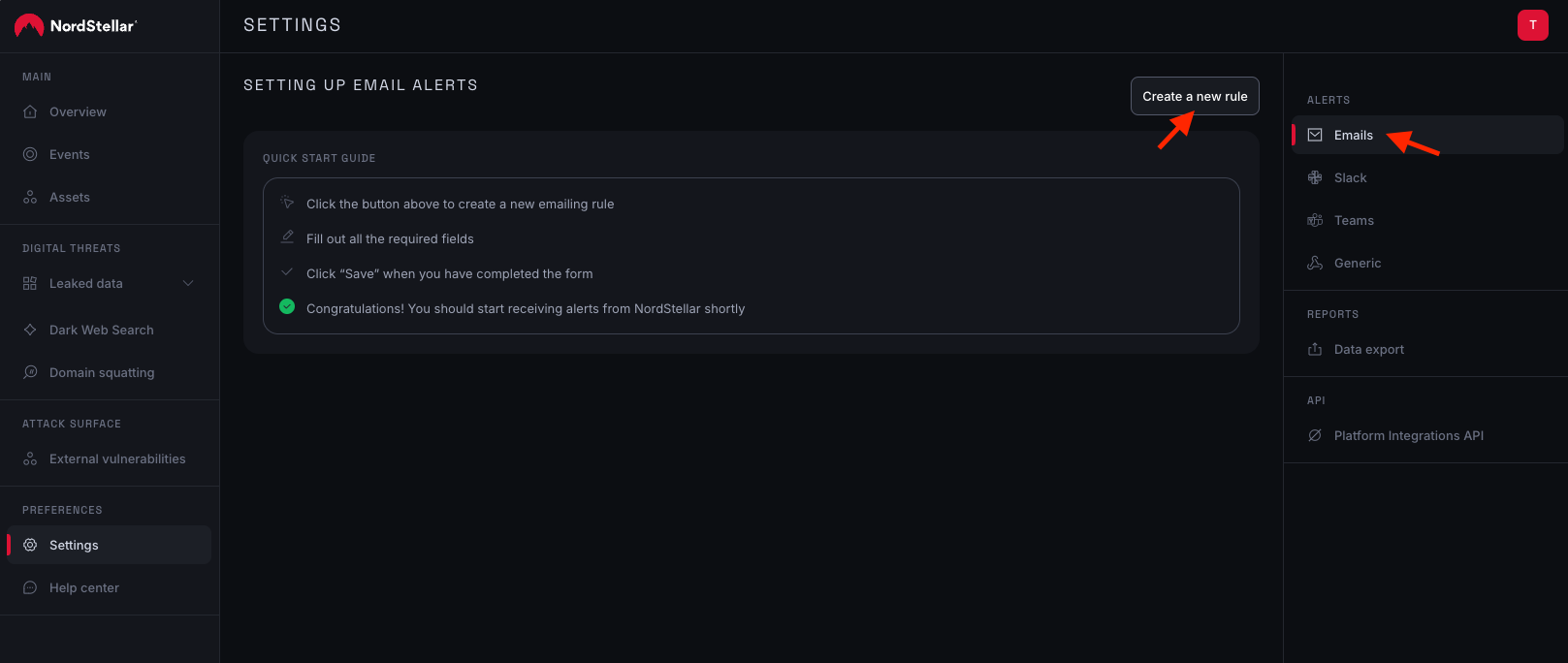
Navigate to Settings: Go to the "Settings" section of the platform.
-
Select "Emails": Click on "Emails" under the Alerts section.
-
View Existing Rules: A table will display all configured email alerts if any.
-
Create a New Rule: Click “Create New Rule” to set up a new email alert rule.
-
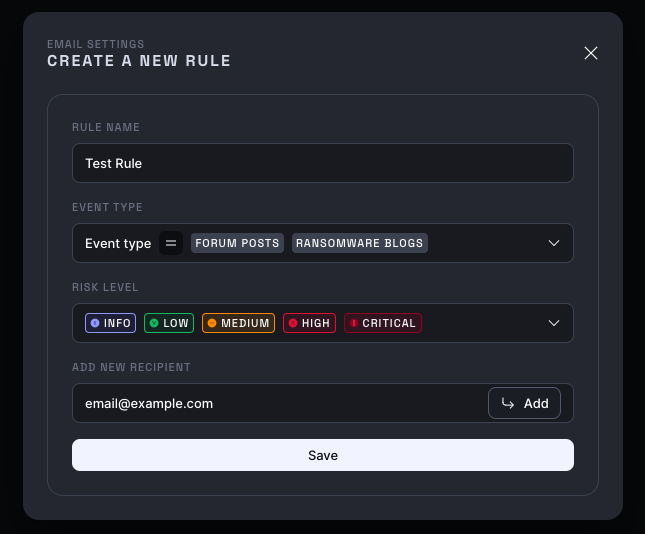
Configure Rule Details:
- Rule Name: Assign a descriptive name for easy identification (e.g., "High-Risk Data Breaches").
- Event Type: Choose the category of events to monitor (e.g., Data Breaches, Combo Lists, Malware Infections, Vulnerabilities, Forum Posts, Telegram Posts, Domain Squatting, Ransomware Blogs).
- Risk Level: Set the minimum risk level that should trigger an alert (Informational, Low, Medium, High, Critical).
- Add Recipient: Enter the recipient's email address and save the configuration. Multiple recipients could be added, just make sure each email is separated by space.
Setting Up Slack Alerts
Prerequisites
To integrate Slack alerts, you must create a Slack App and set up an Incoming Webhook in Slack.
Note: You need to create a Slack App on your side. Follow the steps in official Slack documentation (opens in a new tab) to create an Incoming Webhook.
Steps to Configure Slack Alerts
- Create a Slack App: Go to api.slack.com (opens in a new tab) and create a new app.
- Enable Incoming Webhooks: In your Slack app settings, activate the "Incoming Webhooks" feature.
- Generate a Webhook URL: Select the Slack channel where alerts should be sent and generate a unique webhook URL.
- Configure the Rule on the Platform:
- Rule Name: Assign a descriptive identifier for the rule.
- Webhook URL: Add the generated Slack webhook URL into the designated recipient or URL field.
- Select Event type/s: Choose the category of events to monitor (e.g., Data Breaches, Combo Lists, Malware Infections, Vulnerabilities, Forum Posts, Telegram Posts, Domain Squatting, Ransomware Blogs).
- Risk Level: Set the minimum risk level that should trigger an alert (Informational, Low, Medium, High, Critical).
You should start receiving alerts from NordStellar in your selected Slack channel shortly.
Setting Up Microsoft Teams Alerts
Prerequisites
To integrate Microsoft Teams alerts, you must first configure an Incoming Webhook for the desired chat or channel within Microsoft Teams.
Note: For detailed guidance on creating an Incoming Webhook in Teams, please refer to the official Microsoft Teams documentation (opens in a new tab).
Steps to Configure Teams Alerts
- Set Up Incoming Webhook in Teams:
- Choose an existing or create a new chat or channel in Microsoft Teams where you want to receive alerts.
- Add an Incoming Webhook connector to that chat or channel following the steps outlined in the Microsoft Teams documentation.
- Copy the Webhook URL:
- Once the Incoming Webhook is successfully created in Teams, copy the unique webhook URL provided.
- Configure the Rule on the NordStellar Platform:
- Navigate to the Alerts section within NordStellar and choose to create a new rule for Microsoft Teams.
- Rule Name: Assign a descriptive identifier for the rule (e.g., "Critical Alerts - Teams General Channel").
- Webhook URL: Paste the copied Microsoft Teams webhook URL into the designated recipient or URL field.
- Select Event type/s: Choose the category of events you want to be alerted about (e.g., Data Breaches, Malware Infections, Ransomware Blogs).
- Risk Level: Set the minimum risk level that should trigger an alert (Informational, Low, Medium, High, Critical).
- Save Your Settings:
- Click “Save” to complete the configuration of the alert rule.
You should start receiving alerts from NordStellar in your selected Microsoft Teams chat or channel shortly.
Setting Up Generic Webhook Alerts
Prerequisites
To integrate Generic Webhook alerts, you need an endpoint URL ready where you want to receive the alerts. This endpoint could be part of your own application or a third-party service capable of receiving webhooks.
Note: If your endpoint requires specific authentication or other custom headers (e.g., an API key), ensure you have the necessary Header Name(s) and Value(s) available.
Steps to Configure Generic Webhook Alerts
- Create Your Webhook Endpoint:
- Ensure you have set up an endpoint URL capable of receiving POST requests with JSON payloads.
- Note Your Endpoint URL:
- Copy the URL of your created endpoint.
- Configure the Rule on the NordStellar Platform:
- Navigate to the Alerts section within NordStellar and choose to create a new rule for Generic Webhook.
- Rule Name: Assign a descriptive identifier for the rule (e.g., "Alerts to Custom App").
- Webhook URL: Paste your copied webhook endpoint URL into the designated field.
- (Optional) Custom Headers: If required by your endpoint, click "Add Header" and enter the
Header NameandHeader Value(e.g.,AuthorizationandBearer YOUR_API_KEY). You can add multiple headers if needed.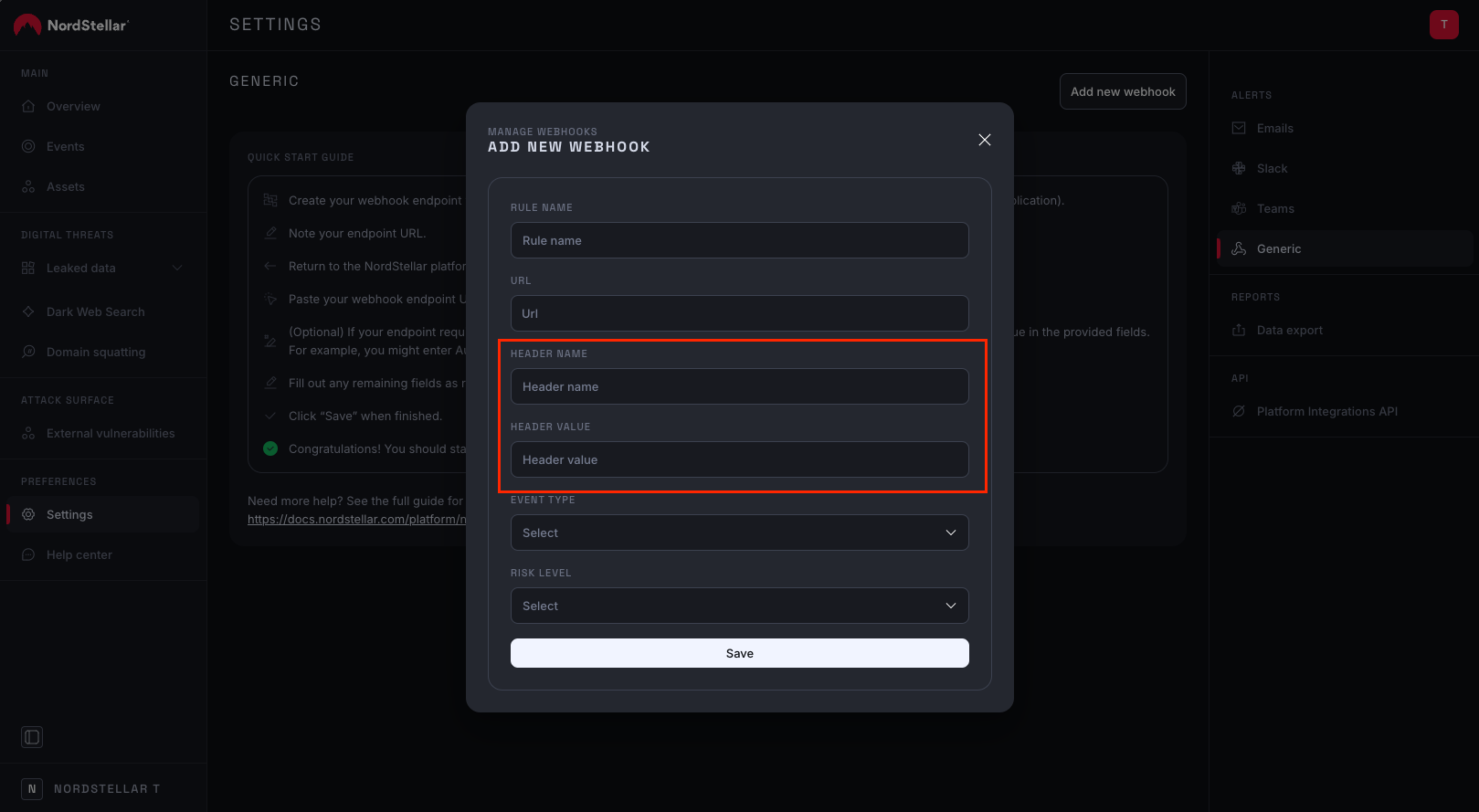
- Select Event type/s: Choose the category of events you want to be alerted about (e.g., Data Breaches, Malware Infections, Vulnerabilities).
- Risk Level: Set the minimum risk level that should trigger an alert (Informational, Low, Medium, High, Critical).
- Save Your Settings:
- Click “Save” to finalize the configuration.
You should start receiving alerts from NordStellar at your specified webhook endpoint shortly.
Payload Structure
When an alert event matching your rule criteria occurs, NordStellar will send an HTTP POST request containing a JSON payload to your configured Webhook URL.
The exact structure of the JSON payload depends on the Event Type that triggered the alert. The format follows the same specifications as the NordStellar Integrations API.
For detailed schemas and examples for each event type's payload, please refer to the official NordStellar Integrations API Reference:
NordStellar Integrations API Reference→Understanding the payload structure for the specific event types you are monitoring is crucial for correctly processing the incoming alerts in your application or service.
FAQ
What event types can I set up alerts for?
Currently, you can configure alerts for Data Breaches, Combo Lists, Malware Infections, Vulnerabilities, Forum Posts, Telegram Posts, Domain Squatting, Ransomware Blogs.
What risk levels can I choose from?
You can set alerts for the following risk levels: Informational, Low, Medium, High and Critical.
Can I receive alerts via multiple channels (e.g., email and Slack)?
Yes, you can create separate alert rules for each desired channel.
What happens if I exceed the alert limit?
If you exceed the daily limit of 25 alerts per day, additional alerts will not be sent until the next reset at 00:00 UTC.
Can I edit an existing alert rule?
Yes, you can. All fields are editable.
Can I test my alert settings before an actual alert is triggered?
No, there is no dedicated test functionality. However, you will receive alerts when a matching security event occurs.