General Overview
The Monitoring Rules feature enables users to automate the tracking of specific terms or topics. Monitoring rules are linked to saved search filters, ensuring continuous monitoring for new content that matches the defined criteria. Users can receive alerts for matches in real time, staying informed about potential threats as they arise. This documentation outlines how to create, edit, and delete monitoring rules, as well as how to configure notifications for generated events.
How to Create and Manage a Monitoring Rule
The Dark Web Monitoring feature allows users to automate the tracking of specific terms or topics by creating monitoring rules. Follow these steps to set up a monitoring rule and manage it effectively:
Creating a Monitoring Rule
- Navigate to the Asset list section under navigation menu.
- Click the Add Asset button.
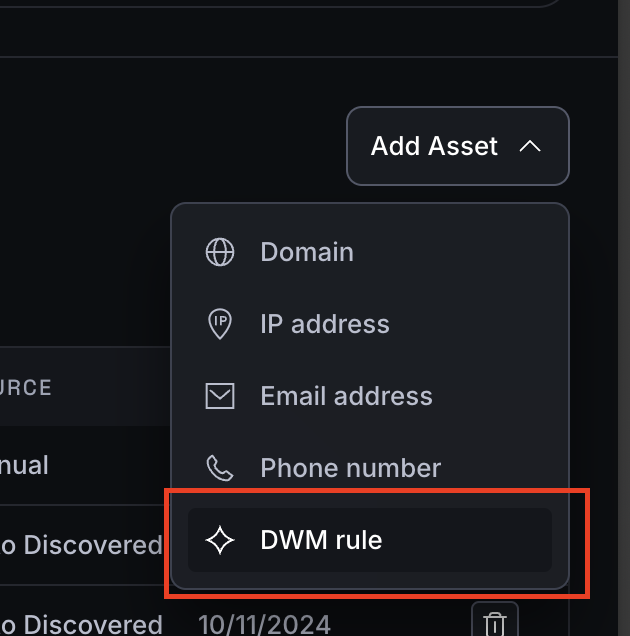
- Provide a name for the monitoring rule. If needed, add a description to clarify its purpose.
- Select a search filter from the dropdown list. These filters are the ones you previously created in the Search section.
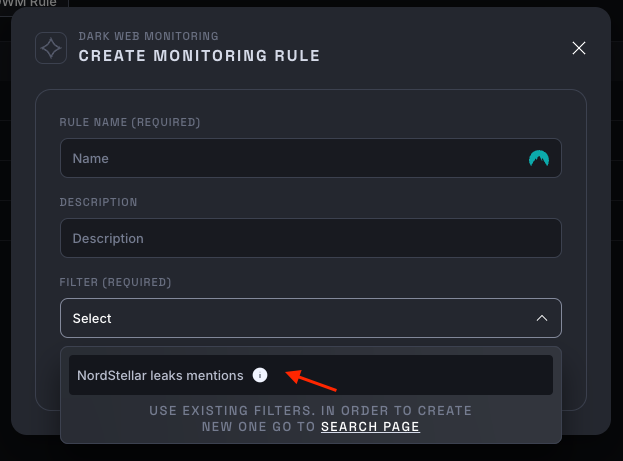
Note: If you don’t have any filters created, you’ll need to go to the Dar Web Search page to create one. Filters can then be reused for creating monitoring rules.
- Once a filter is selected, an additional field will appear to select the source. Choose between Forum, Telegram or Ransomware.
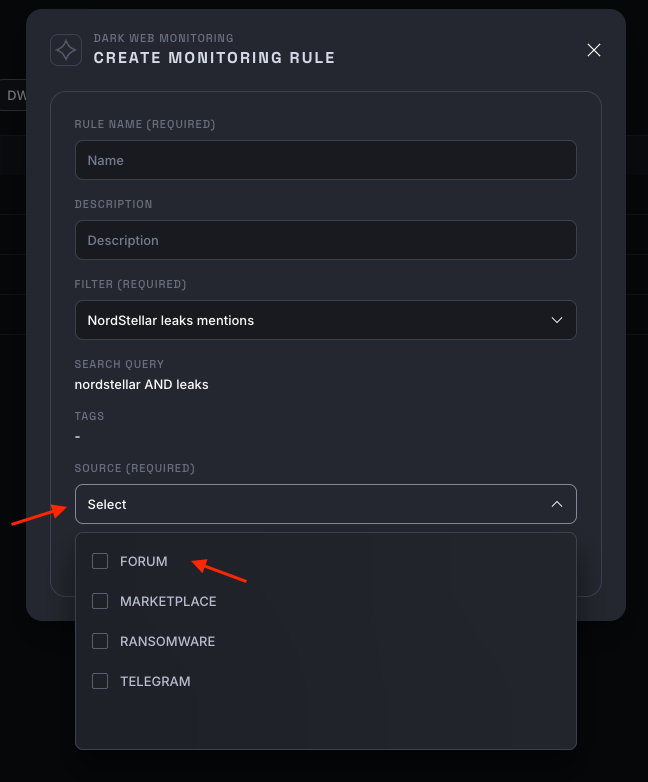
Important: Source selection is mandatory, and at least one value must be selected to proceed.
- After filling in all the required fields, click Save to finalize the rule.
How Monitoring Rules Work
After creating a monitoring rule, the platform will continuously monitor for new content matching the criteria you’ve set. When a match is found, an event will be generated for your investigation.
Important: The platform only monitors content created after the monitoring rule’s creation date. It does not check for matches in past content.
Editing a Monitoring Rule
- Monitoring rules can only be edited to update the Description field or the Source field. This limitation ensures that the integrity between the monitoring rule and its associated events is maintained.
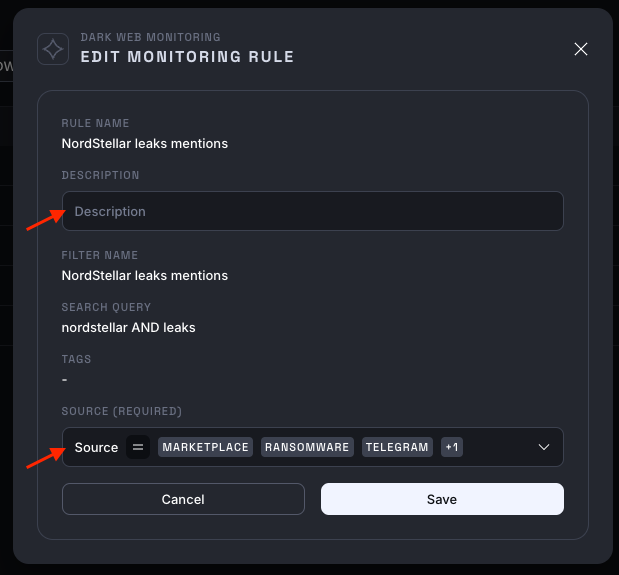
- If a monitoring rule is producing unexpected results, review the associated search filter to ensure it is set up correctly. To edit the filter, navigate to the Search page and make changes there.
Deleting a Monitoring Rule
To delete a monitoring rule that is no longer needed:
- Click the delete icon next to the rule.
Important: Monitoring rules are tied to their generated events. If a monitoring rule is deleted, all events associated with that rule will also be permanently deleted.
Setting Up Notifications
To receive real-time alerts for newly generated events:
- Go to the Settings menu.
- Configure your preferred alert settings for Email or Slack notifications. For detailed instructions on setting up notifications, visit Notifications Setup page.